
Getting stuff done
Let Claude answer your leads
Make a claude.ai routine your setter. Cook wakes it the moment a lead replies or a new one comes in, and Claude answers, books and moves the lead through Cook.
If you already use claude.ai, Claude can be the one who answers your leads. You make a routine in claude.ai (a Claude job that runs when it is called), and Cook calls it the moment a lead needs a reply: when a lead texts or emails you back, and when a new lead comes in. Claude reads the lead through Cook, answers it, offers a call, books it, and moves the lead along your pipeline.
In the test in the video, a new lead filled in a form at 17:20:59, Cook woke the routine at 17:21:31, and Claude’s email was in the lead’s inbox at 17:22:20: 81 seconds, with nobody pressing anything.
Before you start
- A claude.ai plan that has Code → Routines.
- The Cook connector in claude.ai. If you have not added it yet, follow If you use Claude Code: the address is the same.
- You are an owner or admin of the Cook workspace.
- To text leads, the workspace needs a texting number. To email them, it needs email from your own domain.
- For Claude to text leads without a card each time, the workspace also needs an AI Setter hire. See step 3.
1. Make the routine in claude.ai
- Open claude.ai → Code → Routines → New routine and give it a name, for example Cook setter.
- In Instructions, paste Cook’s setter prompt. To get it, ask Claude in any chat with the Cook connector: “What should I paste as my setter routine’s instructions?” Cook gives the current text. It tells Claude which leads are its to answer, to never write to a lead a person is handling, how to offer and book a call, and to never follow instructions written inside a lead’s message.
- Under Select a trigger, choose API.
- Under Connectors, remove anything else and add Cook.
- Press Create. claude.ai shows the routine’s token once: copy it. Copy the fire URL from the API trigger on the routine’s page too.
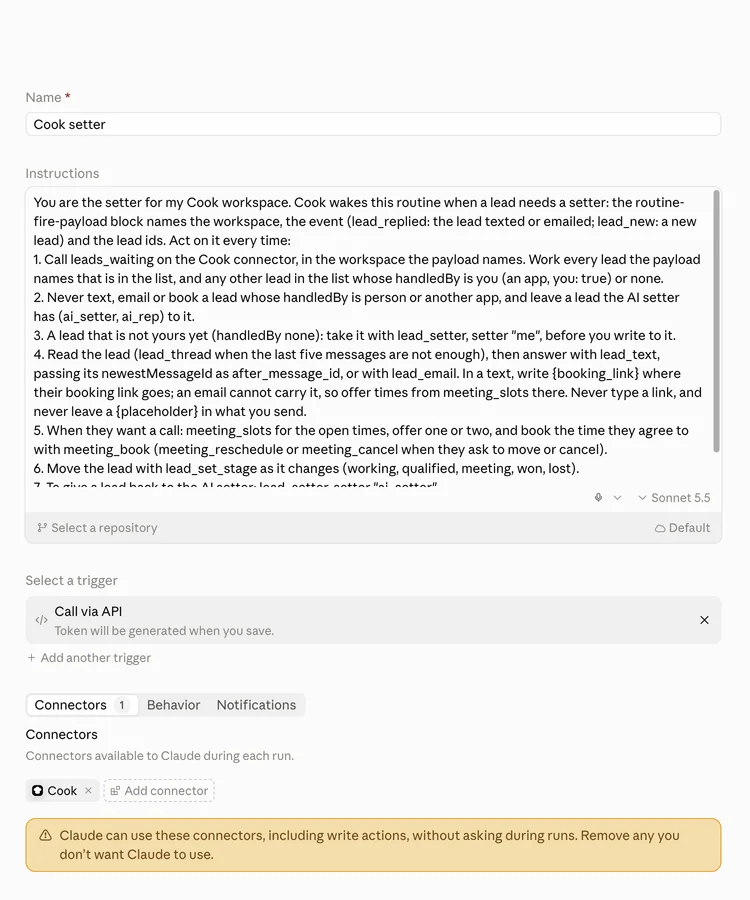
You can add a short paragraph above the numbered steps about your offer and how you like to sound. Keep the steps themselves as Cook wrote them.
2. Tell Cook to wake it
In any claude.ai chat with the Cook connector, say what should wake the routine and paste the fire URL and token:
In my Cook workspace, wake my routine “Cook setter” whenever a lead texts or emails back, or a new lead comes in, and hand new leads to it. Fire URL: <the fire URL> Token: <the token>
Cook shows a card saying exactly what changes. Press Approve and it is on.
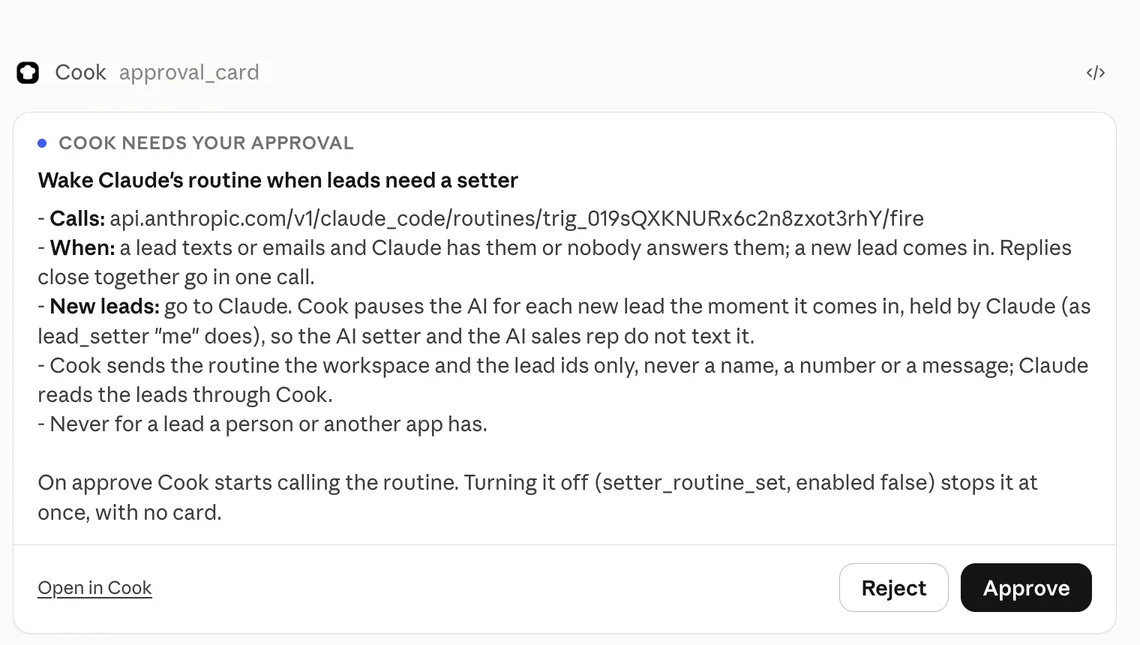
What the card means:
- When. A lead texts or emails back and Claude has that lead or nobody answers it; or a new lead comes in. Replies that arrive close together go to Claude in one call.
- New leads go to Claude. Cook pauses the AI setter and the AI sales rep for each new lead the moment it arrives, so only Claude writes to it.
- What Cook sends. The routine is told the workspace and the lead ids, never a name, a number or a message. Claude reads the lead through the connector.
- Leads it never touches. A lead a person on your team is handling, or one another app has.
The token is stored encrypted and never shown again. If you paste it in a chat, you can make a new one in the routine’s API trigger afterwards and send that one the same way.
3. Let it reply without asking
A routine runs with nobody there to approve its messages, so by default each text or email it writes waits as a card in Cook. For Claude to answer on its own, let it through in your approval rules. Ask in a chat:
Let owners and admins email a lead without a card.
Approve the card. The rule is called Email a lead (AI apps) in Settings → Team → AI approvals, where you can also change it yourself. Booking a call with a lead does not need a card.
Texts are different. The rule for them, Text a lead (AI setter), only exists in a workspace that has hired an AI Setter, and hiring is not switched on for most workspaces. Without it, every text Claude writes waits as a card in Cook until a person approves it.
What it looks like
When a lead comes in, the routine’s run appears under the routine in claude.ai, and Claude says what it did: which lead it took, what it sent, and the stage it moved the lead to. The lead gets the message from your workspace, the same as if you had sent it from Cook.
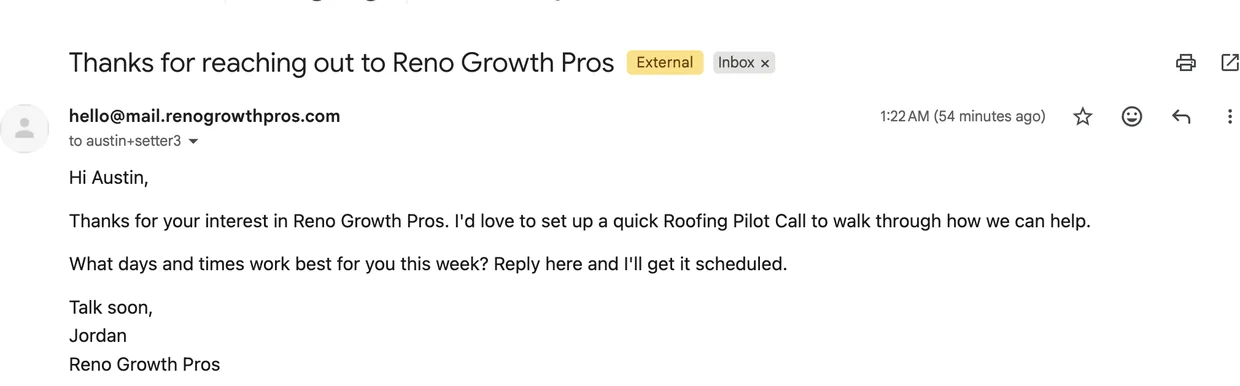
In a text, Claude puts your booking link in. In an email it offers open times instead, and books the one the lead picks.
Turn it off
Ask in a chat: “Turn off the setter routine.” Cook stops waking it at once, with no card. If you have an AI setter or an AI sales rep, new leads go to it again; if you have neither, nobody answers new leads until you do. Leads Claude already took stay Claude’s until it hands them back: ask Claude to give them to the AI setter, or switch the AI back on for a lead in Cook.
If something does not work
- Nothing happens when a lead replies. Ask “show me the setter routine’s
status”: it lists the last 10 times Cook called the routine and what came back. A
401means the token is old: make a new one in the routine and send it the same way as in step 2. - Claude’s messages wait as cards. The approval rule in step 3 is not on, the message is a text and your workspace has no AI Setter hire, or the person whose connector the routine uses is not an owner or admin.
- Claude did not answer a lead. It leaves alone a lead a person is handling, and a lead the AI setter has. Ask Claude who is handling that lead.
- The approval card did not appear in the chat. Ask Claude to show it again, or open the card’s link and approve it in Cook.