
Getting stuff done
If you use Claude Code
Connect Claude Code to your Cook workspace, ask it about your leads, ads, site and quizzes in plain words, and approve what goes out without leaving the terminal.
Claude Code can work in your Cook workspace the way Cook’s own AI does: read your leads and ad results, change your site and quizzes, text and email your leads, pause ads and hire help. Anything that reaches a customer or spends money still waits for you to approve it, and Claude Code asks you right there in the terminal.
Before you start
You need Claude Code on your computer, and you need to be an owner or admin of a Cook workspace on a paid plan. If you have none, Cook’s connect page shows Start a workspace, Start the plan or Name your business instead of the Connect button, or says A paid workspace with owner or admin access is needed.
Connecting it
-
In your terminal, run:
claude mcp add --transport http cook https://mcp.trycook.ai/mcp -
Start Claude Code, type
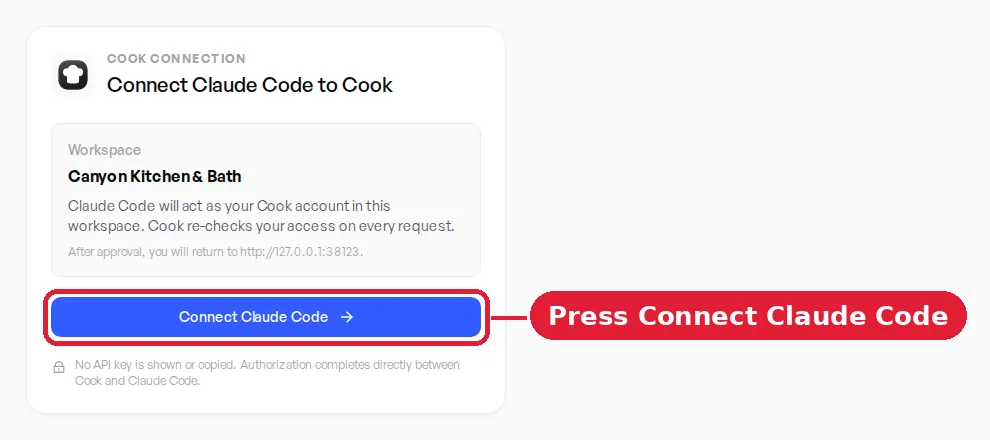
/mcp, choose cook and sign in. Your browser opens Cook’s connect page. If you have more than one workspace, choose the Starting workspace. Press Connect Claude Code.
- Go back to Claude Code and ask it something about your business.
One connection covers every paid workspace where you are an owner or admin, including ones you join later. Claude Code starts in the workspace you chose and asks you before it switches to another one. It works as you. Cook checks your access again on every request, so if you are removed from a workspace, Claude Code stops working in it at once. The address and the command are also in Cook under Settings → Developer → Connect AI apps.
What to ask
Plain words work. You do not need to know how Cook names anything. These were asked, in this order, of a test workspace:
- “did we get any leads from the ads today?”
- “how are the ads doing?”
- “make the home page a 4-question quiz that ends on my booking calendar”
- “add a company name box to the quiz”
- “ok put it live”
- “pause the ads”
- “where are people dropping off in the quiz?”
Other things it can do: text or email a lead, reply to a lead’s message, change an ad budget, build or change a booking page, change a routine and test it, and show you your site running on your own computer before it goes live. If hiring is switched on in your workspace, it can also hire an AI teammate.
What Claude Code asks you first
Anything that reaches a customer, spends money or changes something live is filed as a card, the same card Cook’s own AI would file. Claude Code shows you the card as a question, and nothing happens until you answer:
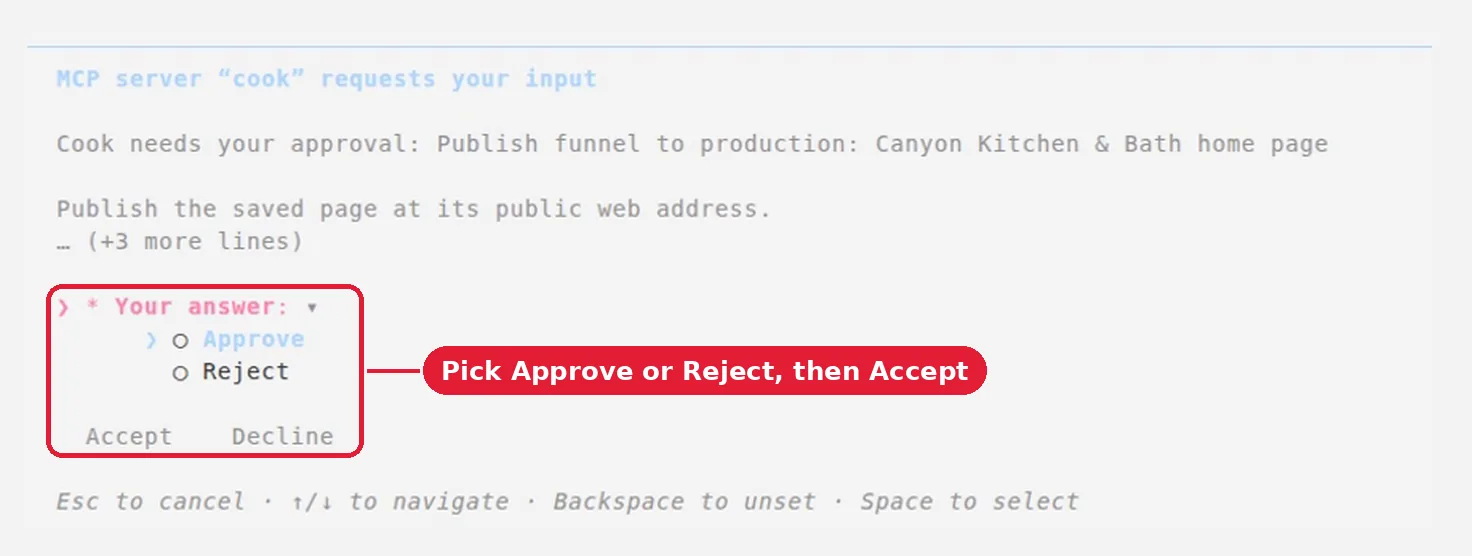
These ask you in Claude Code:
- pausing or resuming ads, changing a budget, a new campaign or ad;
- putting your site’s changes live;
- changing a booking page;
- turning a routine on, or switching it to a new version;
- an email from your linked Gmail or Outlook that Cook holds for approval;
- cards that carry a fee (a texting registration fee, buying a domain). Claude Code shows a box where you agree to the fee.
Texts and emails to a lead do not ask you on their own. The card waits in Cook for a person to approve it there. If you are at the terminal, ask Claude Code to put it to you, and it asks you right there.
Cards your role in the workspace may not decide are decided in Cook instead, and Claude Code gives you the link to open them.
Stop the questions (YOLO mode)
To let Cook answer for you in Claude Code, connect it with one more header:
claude mcp add --transport http cook https://mcp.trycook.ai/mcp --header "X-Cook-Yolo: on"Then Claude Code switches between your workspaces without asking, and the cards it files are approved at once. In Cook those cards show as approved by you. Claude Code still asks about cards that charge a fee, launching or resuming Whop ads, changes to your team or to the approval rules, and any card you ask it to put to you.
What gets a payment link
Hiring an AI teammate, where hiring is switched on. Claude Code gives you Cook’s checkout link, and nothing is hired or charged until you pay on that page.
Your site
Claude Code changes your site’s pages itself. It downloads a copy, edits it, and saves it back to Cook as the site’s working version; your live site does not change until you approve the card that puts it live. Before that, it can run the site on your own computer and give you an address to look at it.
Claude Code can also make a new site from pages it writes. Cook puts the site on its build machine and gives you an address to look at it. When you ask to put a new site live, Claude Code asks you to approve its publish card, and the card names that address so you can look at the page first. Nothing is public until you approve.
If something does not work
- Claude Code does not list cook. Run the
claude mcp addcommand again, then restart Claude Code. - The Cook page says you cannot connect. Only an owner or admin of the workspace can connect Claude Code. Ask one to change your role, or to connect it themselves.
- Claude Code gave you a link instead of asking you. That card is decided in Cook: open the link and approve it there.
- It is working in the wrong workspace. Ask Claude Code which workspace it is in, and to switch to the one you want. It can switch to any paid workspace where you are an owner or admin, without signing in again.