
Slack and Discord
If your team already uses Slack
Put Cook in the Slack channels your team already uses, and see what it can do there.
Before you start
You need permission to install an app in your Slack workspace. If you do not have it, the person who administers Slack can complete the install and you can use Cook straight afterwards.
Putting it in your Slack
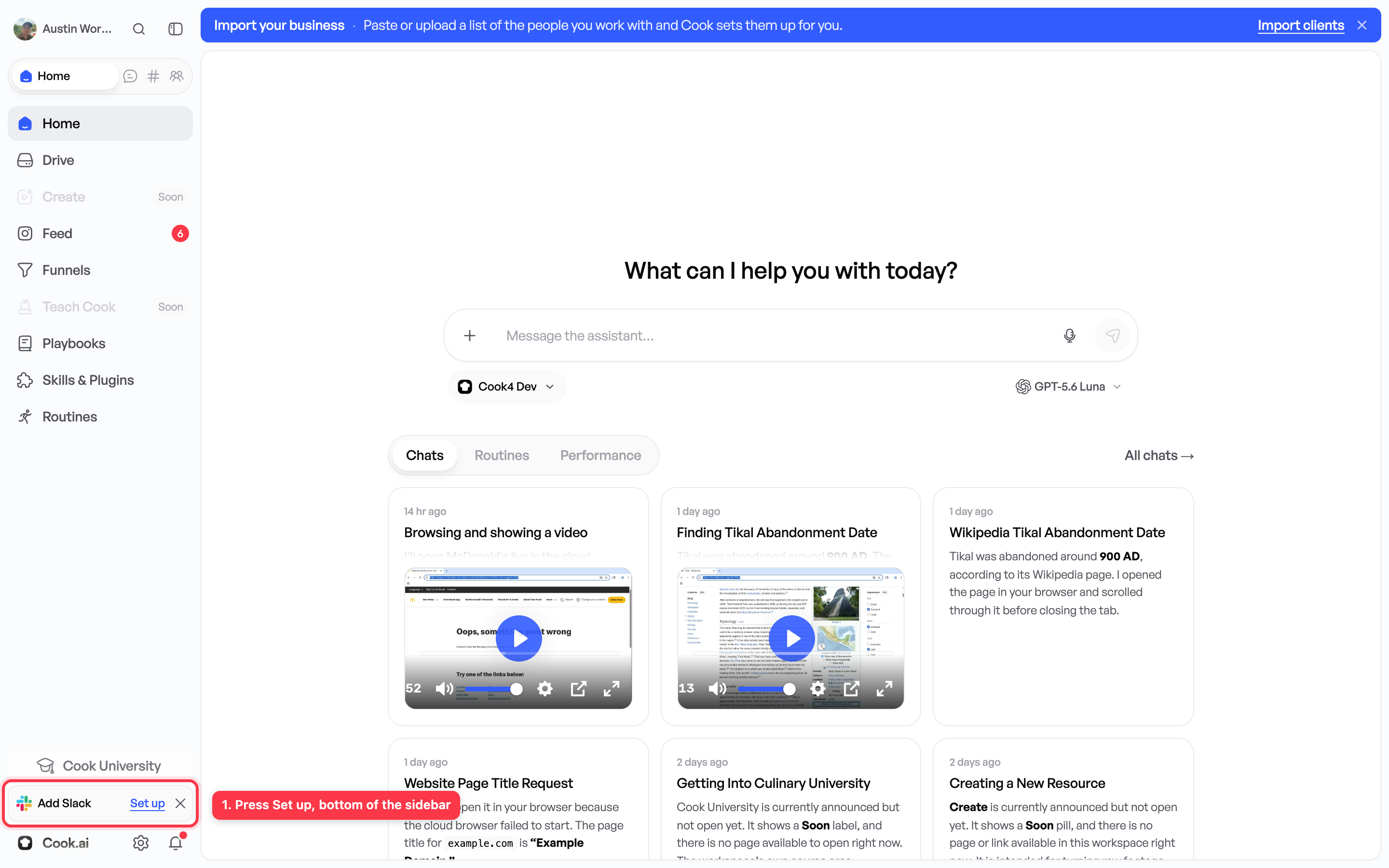
- At the very bottom of the sidebar there is a small bar that says Add Slack. Press Set up on it.
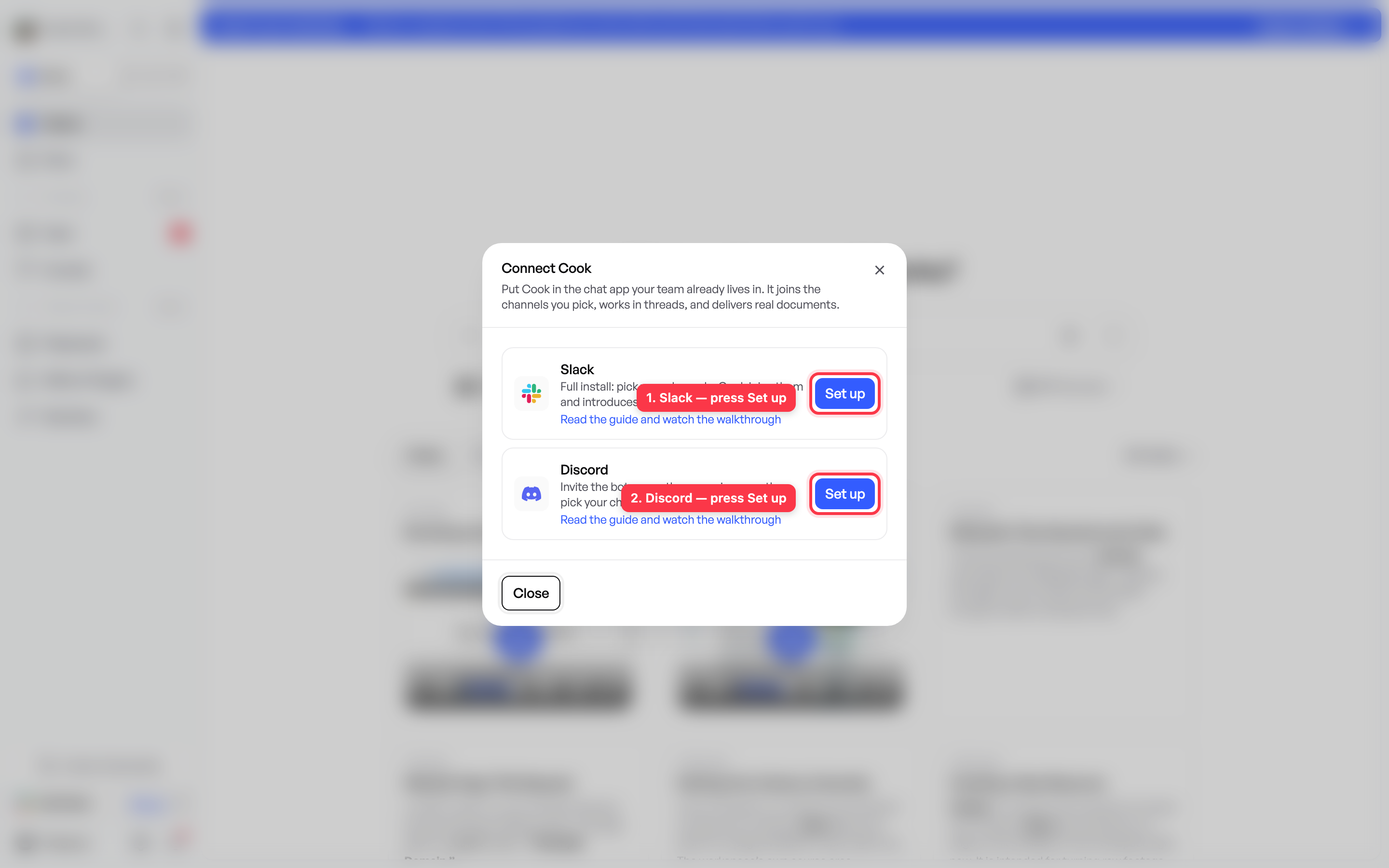
- A window opens offering Slack and Discord. Press Set up on the Slack row.
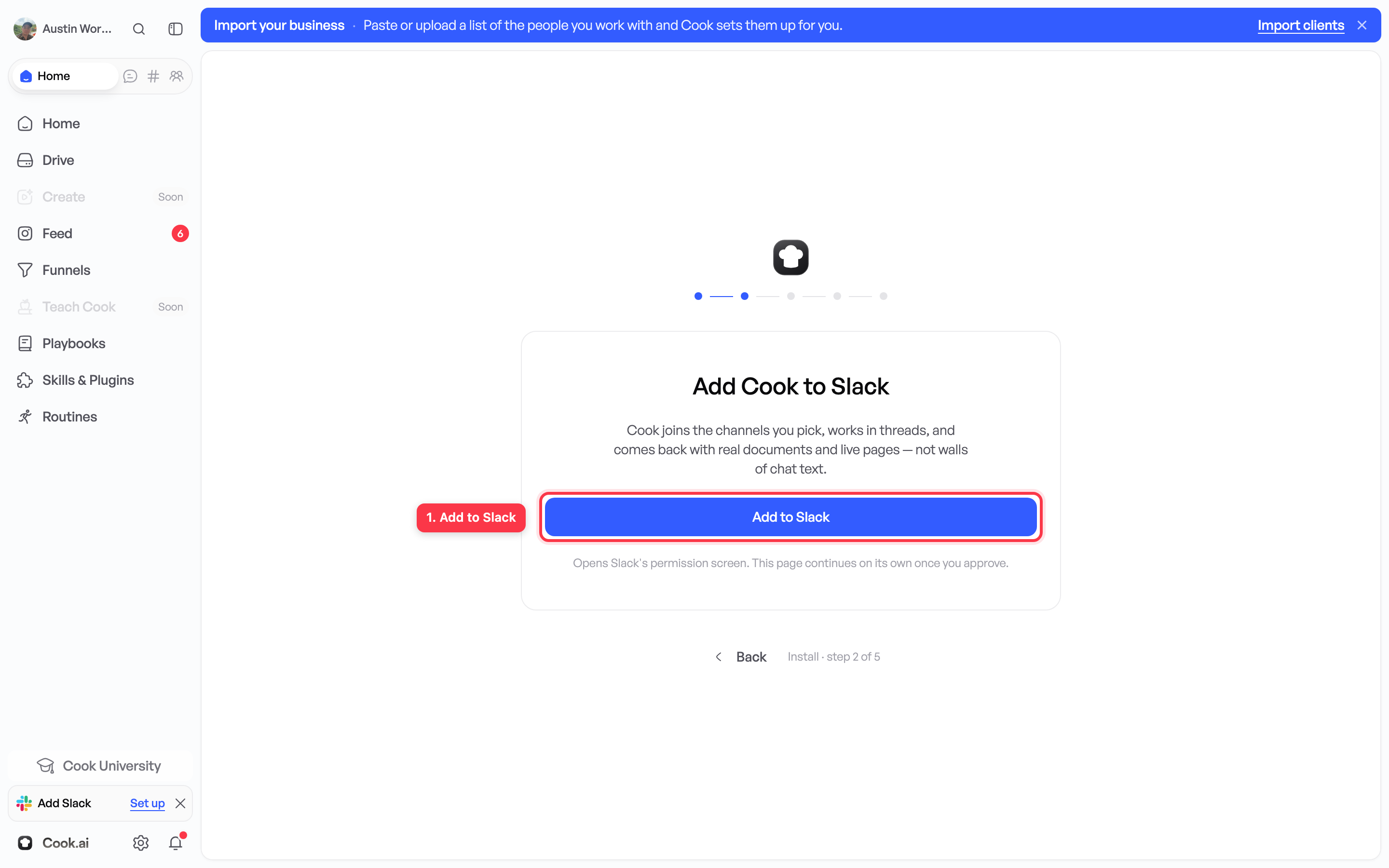
- Press Add to Slack. That opens Slack’s own permission screen; approve it there and Cook brings you back on its own.
- Tick the channels Cook should join. It joins them and introduces itself in each one.
That is the whole install. You do not have to add Cook to channels by hand afterwards, though you can invite it to more at any time.
Asking it for something
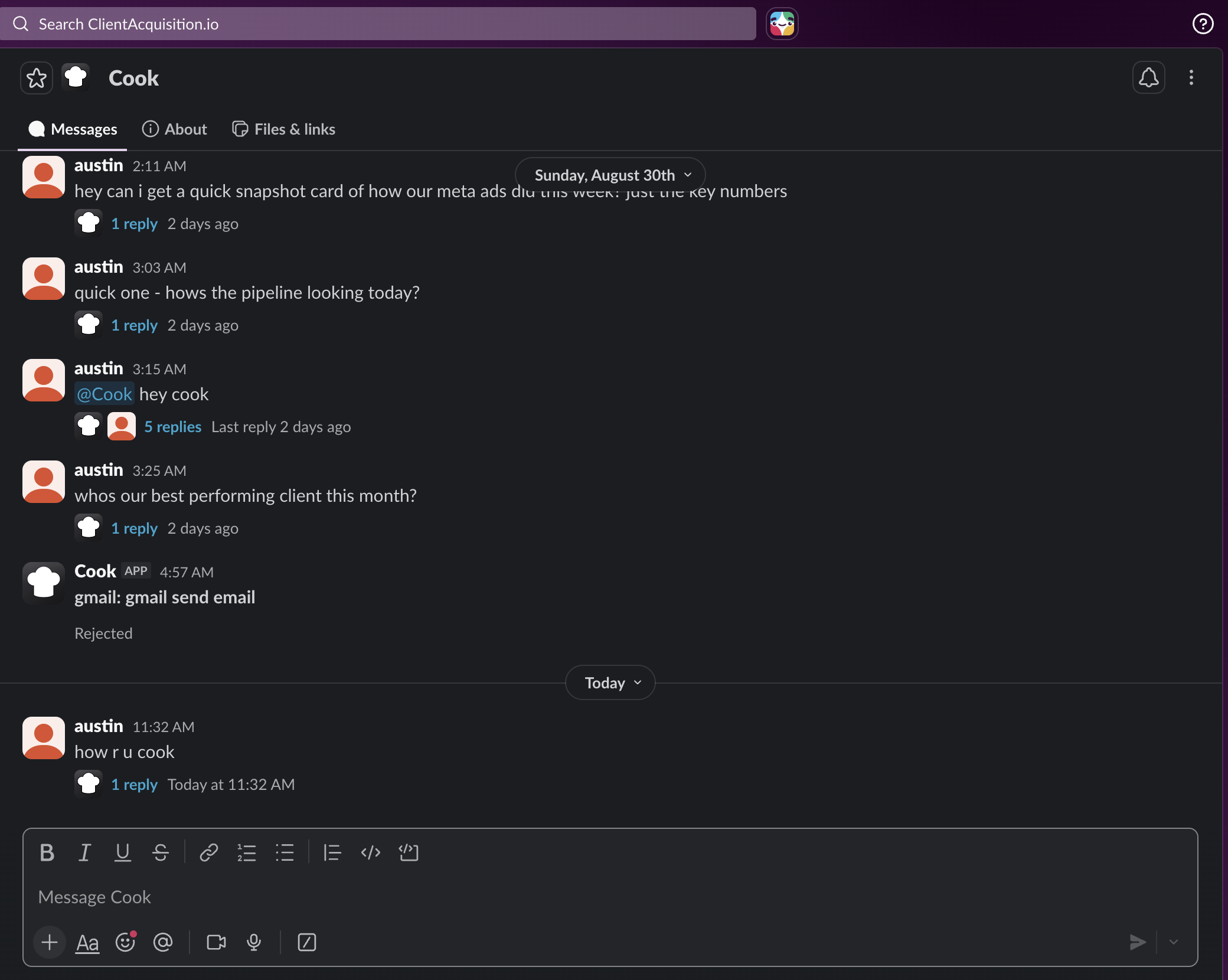
Send Cook a direct message, or write @Cook in any channel it has joined. Use
plain English — there are no slash commands to learn.
You will see a chef mark appear on your message the moment Cook starts working, so you know it received you before any words come back.
What comes back
- Numbers arrive as a card built from Slack’s own components: real text you can select, not a screenshot.
- Documents arrive as real Slack file attachments you can forward — Word files, spreadsheets, slide decks and PDFs.
- Long research is written up and filed in your Library, with a link in the thread rather than pages of text.
Approving what it proposes
Anything that spends money or leaves the building — sending an email, changing ad spend, posting to a channel — arrives as a card with Approve, Request changes and Reject buttons. Press one and it runs exactly as proposed; the request is frozen when the card is created, so it cannot change underneath you.
When a proposal is a list, the card carries tick boxes. Untick anything you do not want, then approve, and only the ticked items run.
Who may press depends on your workspace’s own roles. An owner can run some things without a card at all; a teammate’s request routes to whoever is allowed to sign it off. You set that in Settings, under the approval policy.
If you have two Slack workspaces
If your organization has connected more than one Slack workspace, a card always goes to the workspace you were talking in, and can only be pressed there.
If something does not arrive
- Cook does not answer in a channel: it has not been invited to that channel. Invite it, or add the channel from the Integrations page.
- A teammate is refused: they have not paired their Slack account yet. They can send Cook a direct message to pair, then try again.
If your team uses Discord instead
Cook works the same way in Discord. See If your team already uses Discord.